Sign in with X
Open Save2Obsidian and choose Sign in with X. X will ask you to authorize basic read access so we can identify your account. We do not ask for permission to post, like, follow, or send direct messages.
Sign in with X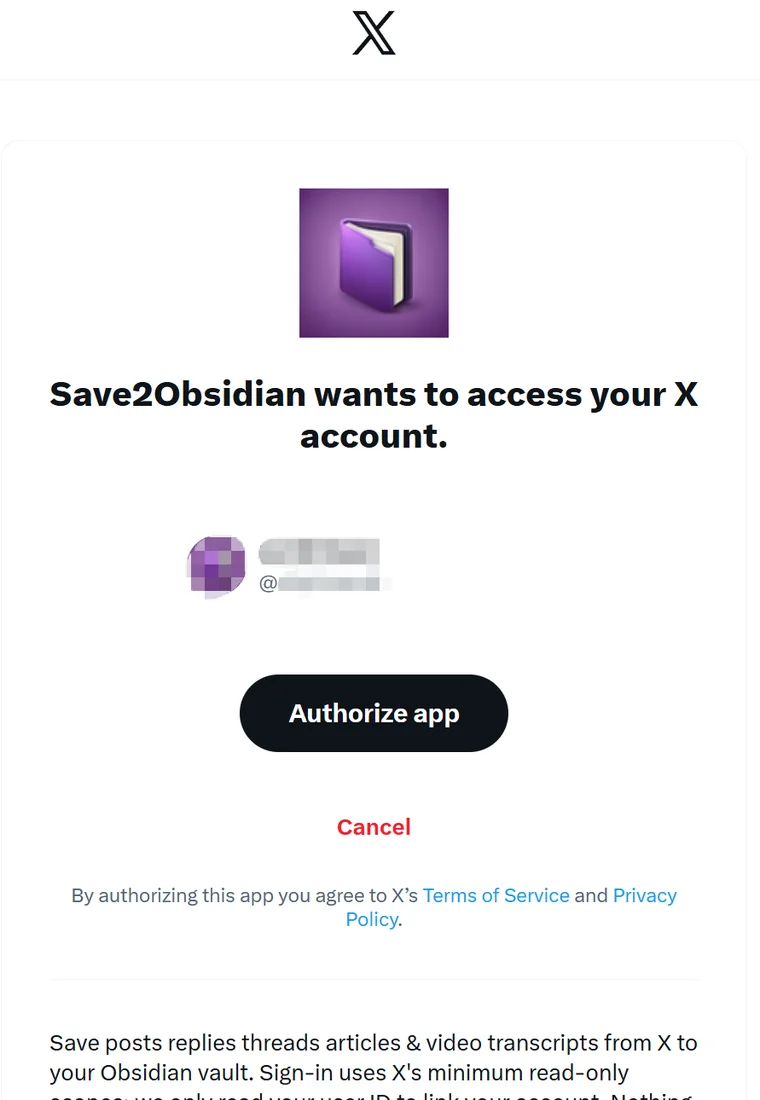
Copy your personal key
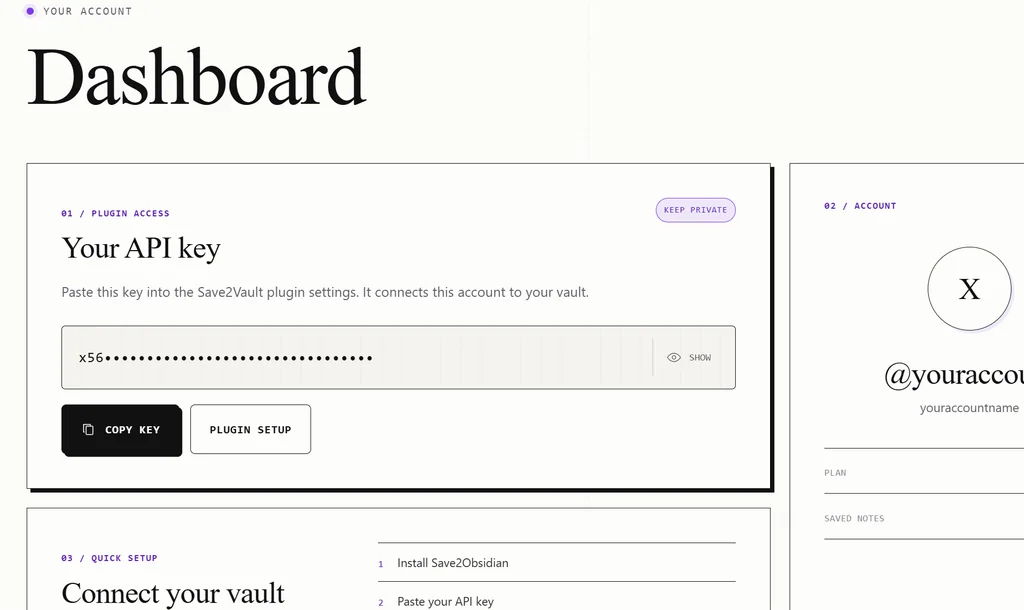
After signing in, you will land on the dashboard. Find your API key, choose Show if you want to inspect it, then choose Copy key.
Keep it private. Your key lets the plugin access notes saved to your account. Do not post it or include it in screenshots.
Install the Obsidian plugin
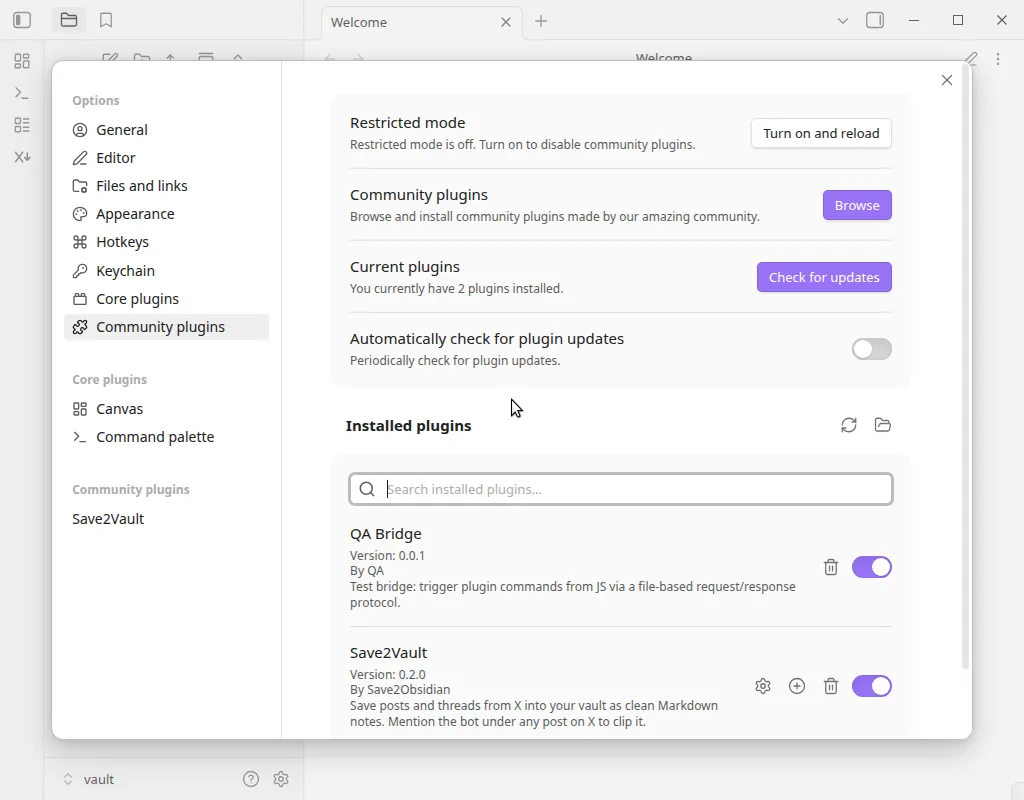
Choose either method below. Installing from the Community plugins store is the simplest option.
Paste the key in plugin settings
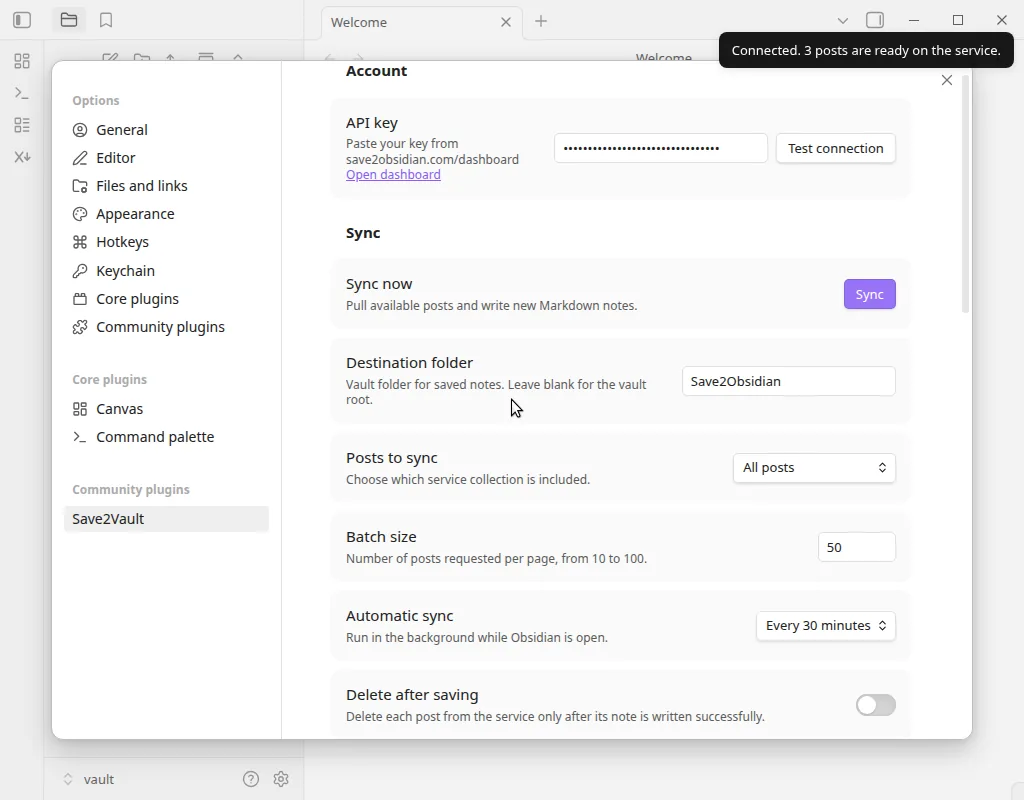
Open Settings → Save2Vault, paste the key into the API key field, and click Test connection to confirm it works. Then click Sync now to run your first sync — after that, the plugin also checks for new notes automatically every 30 minutes while Obsidian is open.
Mention the bot under a post
On X, open any post you want to keep. Reply with @save2obsidian. That is all you need—there is no special command syntax, and you can add your own words alongside the mention.
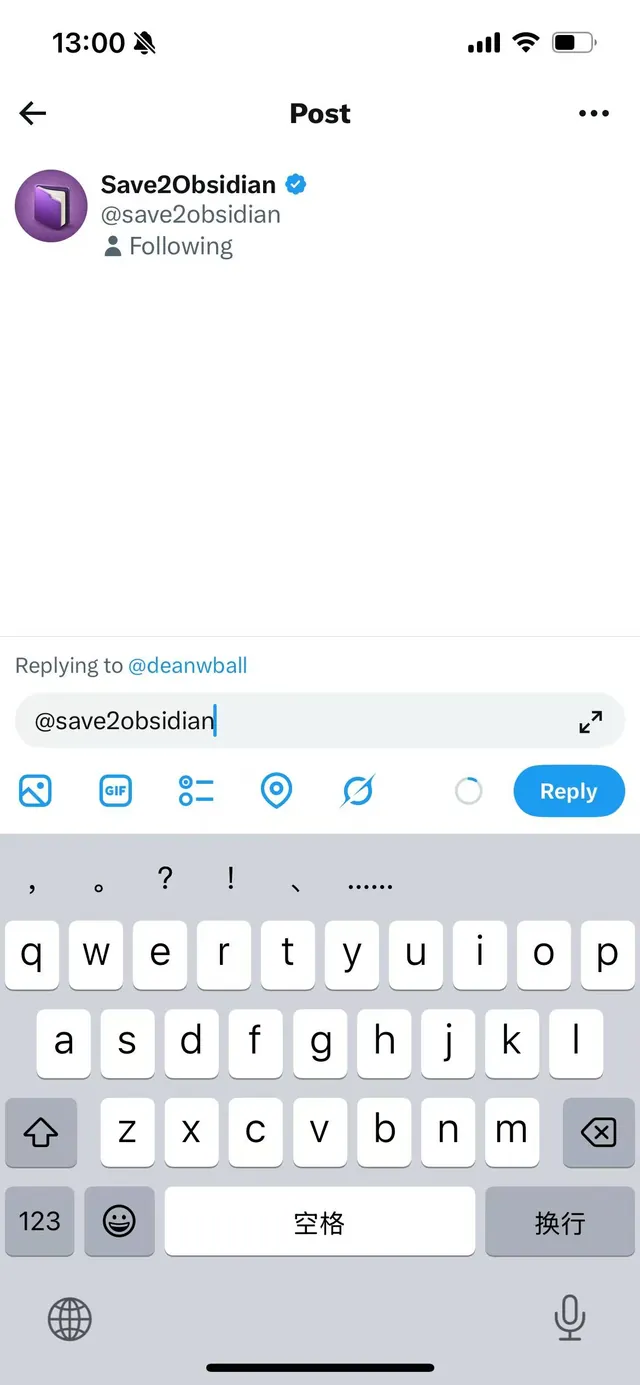
@save2obsidian.
Look in your vault
Give the service and plugin a short moment to process and sync. A new markdown note will appear in your configured Save2Obsidian folder, ready to edit, link, tag, or move.
The very first time a sync brings in notes, Save2Vault opens them for you so you can see the result right away. From then on, new posts land in the folder quietly — nothing pops up while you work.
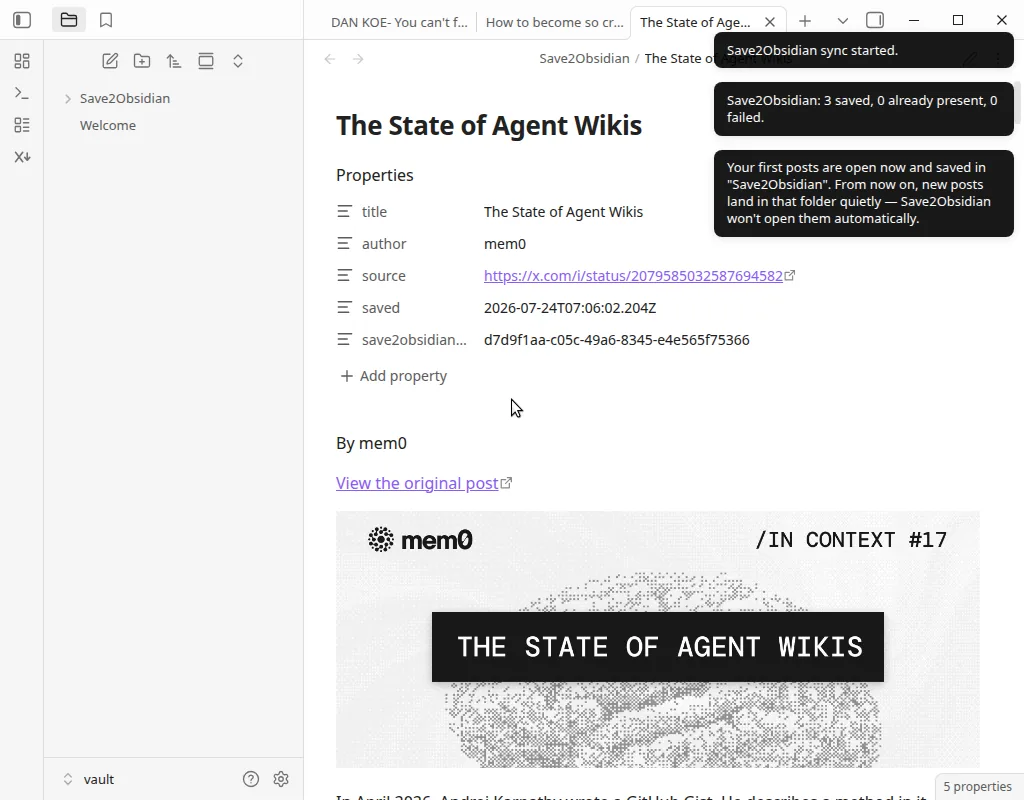
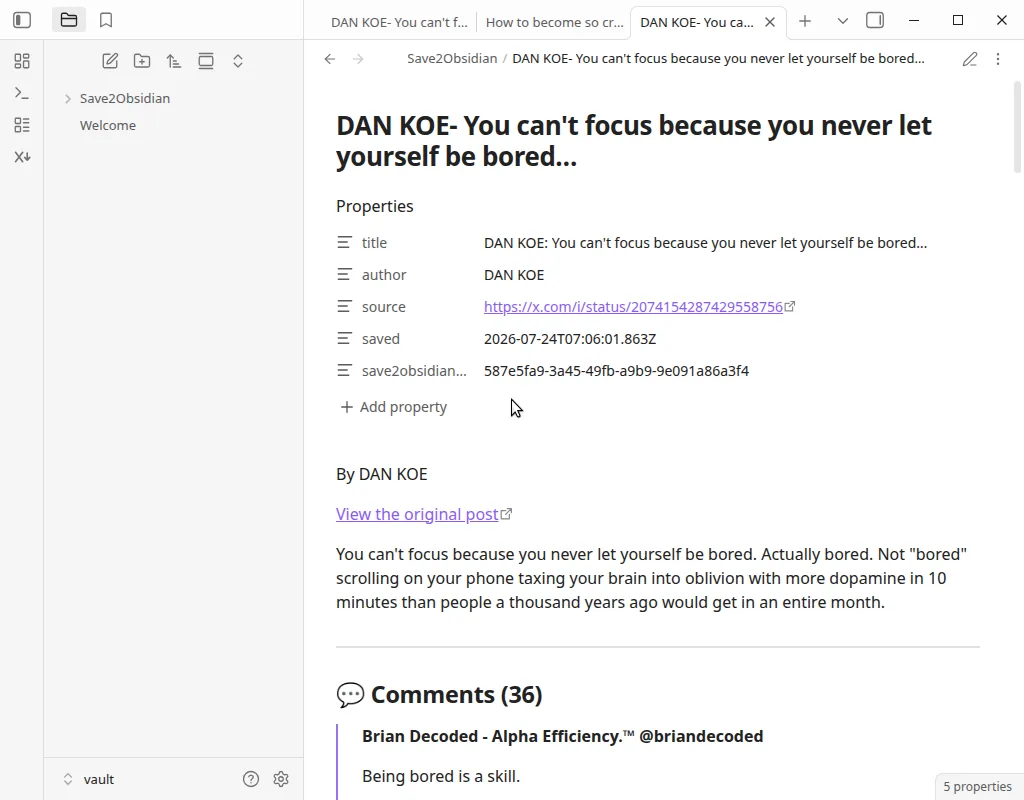
You can also check Recent saves on the dashboard to confirm that the post reached your account.
A few useful details
How long does a note take to appear?
Usually a short moment. Processing time can vary with the post and how often your Obsidian plugin is checking for new notes. If nothing appears after several minutes, confirm that the plugin is enabled and the key is correct, then check Recent saves on your dashboard.
Does Save2Obsidian support video?
Video posts are saved as their available text, context, and the original link. Video AI transcription is not available yet; when it ships we will announce it on the site.
Can I choose where notes are stored?
Yes. Use the Save2Vault plugin settings to choose the destination folder inside your vault.
Are images stored online or in my vault?
By default, notes keep online image links so your vault stays light. If you prefer fully offline notes, set Post images to Download images into your vault in the plugin settings — images are then saved to an attachments subfolder next to your notes.
How do I unlink my X account?
Account unlinking will move to a self-service settings page in a future update. For now, email support@save2obsidian.com and ask us to remove the link.